Case study · Dental practices
Screens for dental practices that calm nerves and explain treatments.
Treatment information, price lists, hygiene tips and payment plans, on a screen patients see while they wait.
28 ready-made designs for dental practices, free with every screen.
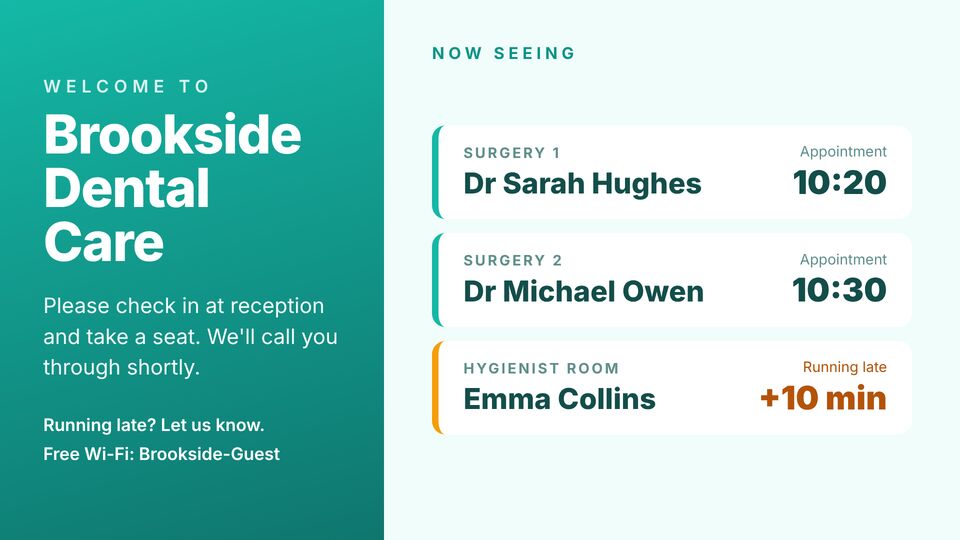
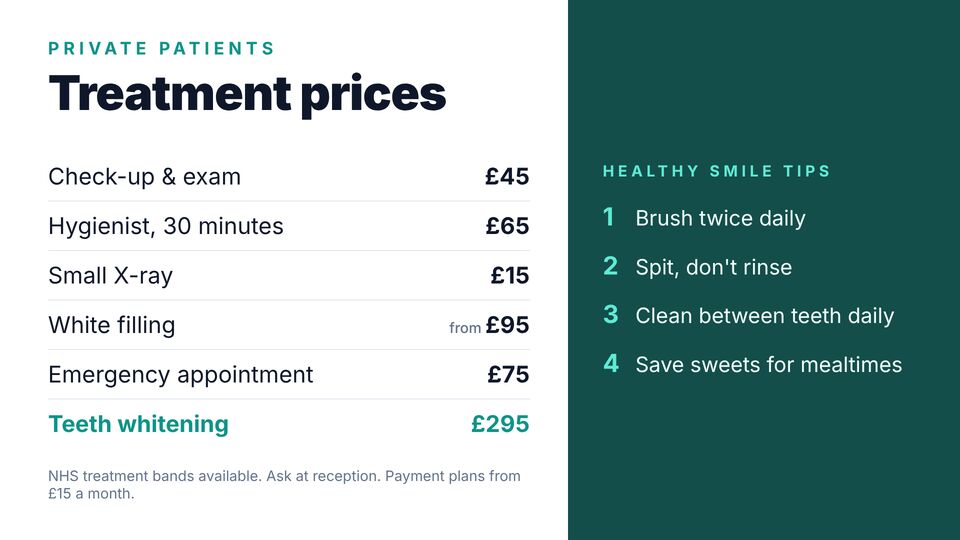
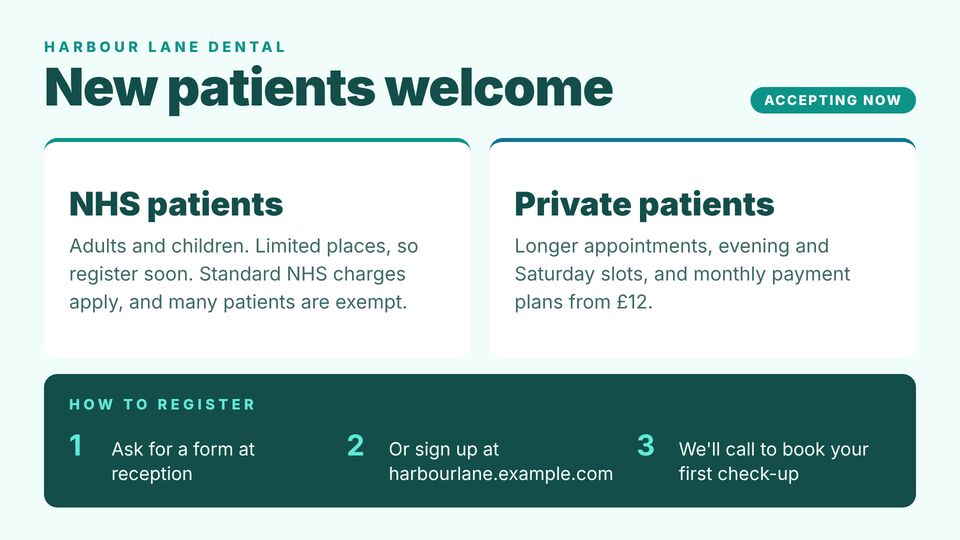
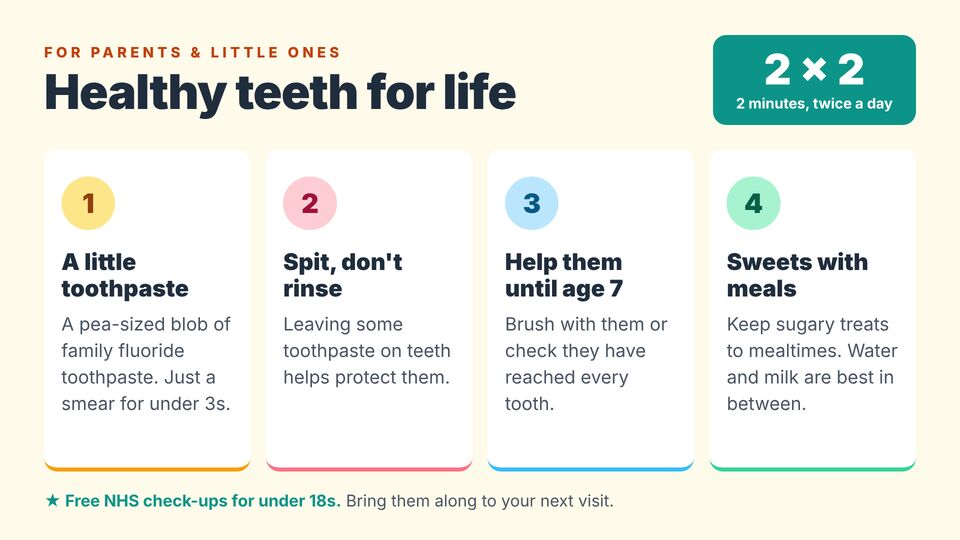
Three of the designs for dental practices, as they'd look on a wall screen.
The challenge
What dental practices are up against.
Patients often don't know about whitening, aligners or payment plans until they ask. A waiting room screen can explain treatments and put people at ease.
What the screens need to do
- Treatment explanations and price lists
- Oral health tips for children and adults
- Practice news, payment plans and new patient information
Where the screens go
Three screens, three jobs.
Each screen gets its own playlist, so the message fits the spot it's in. Add more whenever you like.
In the waiting room
Treatments, tips and the team.
At reception
Price list and payment plans.
In the kids' corner
Brushing tips and friendly characters.
A day on the screens
Schedules do the changing, not you.
An example week for dental practices. Each row is a playlist and when it plays; the screens switch on their own.
| When | Playlist | What plays |
|---|---|---|
| Mornings | General | Check-ups, hygiene and the team. |
| After school | Family | Children's tips and family appointments. |
| All day | Treatments | Whitening, aligners and implants. |
| January | New year | New patient offers and smile makeovers. |
Slide types that do the work: HTML boardsVideoImagesScheduling
Templates
Designs made for dental practices.
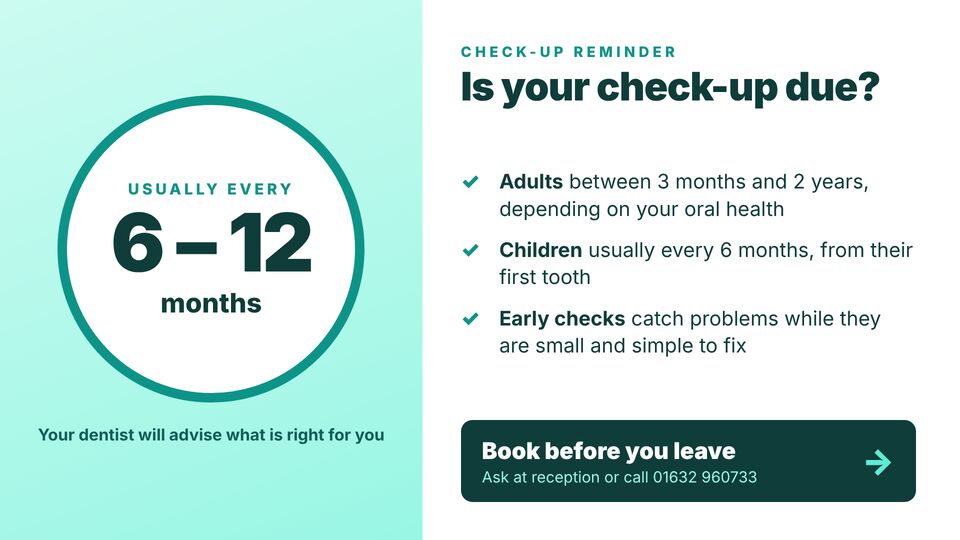
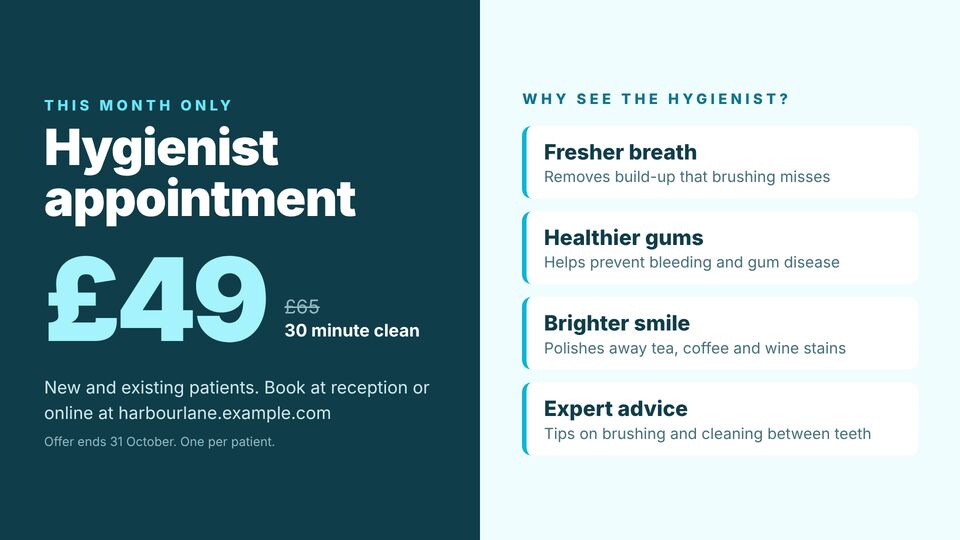
Copy any of these into an HTML slide and change the words and prices. Browse Dentist (28).
Set up in an afternoon
From a blank TV to on air, in three steps.
Build the playlists
Start from the templates for dental practices, or upload your own images, video and PDFs. Set how long each slide shows.
Schedule them
Point each playlist at a screen and set the times and days it should run, like the example above.
Type the code on the TV
Open the screen page on any TV with a browser, enter its six-digit code, and it's live. Nothing to install.
Get started
Put your screens to work.
Create a workspace, build the first playlist from a template, and activate a screen today. £10 per screen a month, or £5 when billed annually.
More case studies